Printing a Drawing
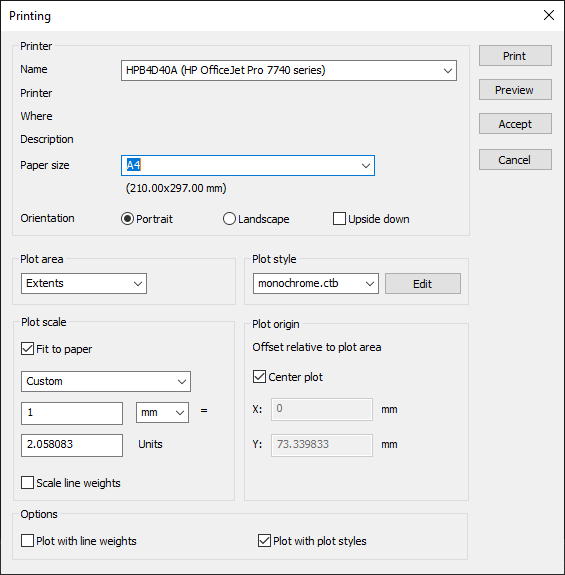
You can use the Plot command to print a drawing.
How to print a drawing:
- Click on File > Print
 on the Ribbon.
or
- Enter PLOT in the command window.
- Select a suitable Printer or Plotter.
- Select the Paper size you want.
- Select the Orientation of the paper.
- Set the Plot area.
a) Current Display: Prints the part of the drawing that is displayed in the current viewport.
b) Extends: Prints all objects in the drawing.
c) Limits: Prints all objects that are within the drawing limits (model space only).
d) Layout: Prints the current layout (paper space only).
d) Window: Prints all objects that are in a user-defined window.
To do this, click the "Window" button and define the print area in the view window. - Select a Plot style.
- Define the Plot scale for the printout.
- Define the Plot origin.
Either select the option "Plot centered" or specify the X and Y coordinates of the plot origin relative to the lower left corner of the paper. - Set further plot options.
Plot with plot styles: If this option is set, the settings of the print style are used.
Plot with line weights: If this option is set, drawing elements are printed with the line widths assigned to them or their layers.