Selecting drawing elements
In order to modify drawing elements, they usually first have to be selected in the graphics area.
This is how you select a single drawing element:
- Call up a command (e.g. move) that requires elements to be selected.
The instruction appears: Specify elements: - Move the cursor to the element you want to select and click the left mouse button.
The small rectangle of the cursor must touch the drawing element.
The drawing element is now shown in dashed lines. - Repeat step 2 to select further drawing elements.
- Press Enter to complete your selection.

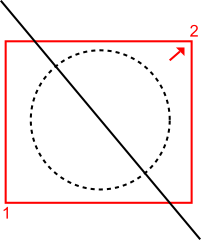
How to select several drawing elements that are completely within a selection window:
- Call up a command (e.g. move) that requires elements to be selected.
The instruction appears: Specify elements: - Position the cursor on the first corner point of the selection window and click with the left mouse button.
- Position the cursor on the second corner of the selection window and click with the left mouse button.
- The second corner point must be selected so that the second corner point is to the right of the first corner point.
- Repeat steps 3 and 4 to select further drawing elements.
- Press Enter to complete your selection.
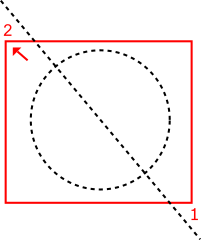
This is how you select several drawing elements that are completely within a selection window or that touch its borders:
- Call up a command (e.g. move) that requires elements to be selected.
The instruction appears: Specify elements: - Position the cursor on the first corner point of the selection window and click with the left mouse button.
- Position the cursor on the second corner of the selection window and click with the left mouse button.
- The second corner point must be selected so that the second corner point is to the left of the first corner point.
- Repeat steps 3 and 4 to select further drawing elements.
- Press Enter to complete your selection.