Defining a Block
How to call up the Define Block dialog:
- Click on Draw > Define Block
 on the Ribbon.
or
- Enter BLOCK in the command window.
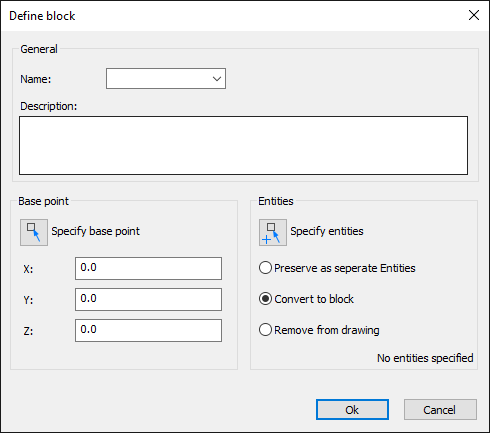
How to define a block:
- Click on Draw > Define Block on the Ribbon.
or
- Enter BLOCK in the command window.
- Enter a name for the block in the dialog box.
- In the Description field, enter text that describes the block (optional).
- Click on the Button
 to add drawing elements to the block.
The Define Block dialog is hidden. - In the graphics area, select the drawing elements that you want to combine into a block.
- Press Enter to complete your selection.
The Define Block dialog is displayed again. - Choose between the following options:
Preserve as separate entities: The selected drawing elements remain unchanged in the drawing.
Convert to block: The selected drawing elements are removed from the drawing and reinserted as part of the new block.
Remove from drawing: The selected drawing elements are removed from the drawing. - Enter the coordinates X, Y, Z of the base point in the dialog box.
or
- a) Click on the Button
 to specify the base point in the graphics area.
The Define Block dialog is hidden.
b) Specify the base point in the graphics area
The Define Block dialog is displayed again. - Click OK to end the command.