Defining Block attribute
This is how you open the Block Attributes dialog:
- Click on Draw > Attribute
 on the Ribbon.
or
- Enter ATTDEF in the command window.
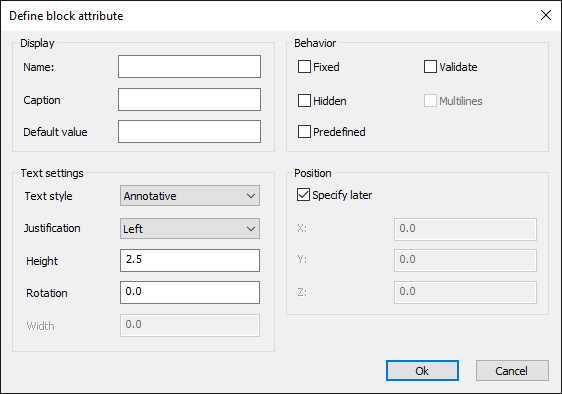
How to create a Block Attribute:
- Click on Draw > Attribute on the Ribbon.
or
- Enter ATTDEF in the command window.
- Enter the attributes Properties in the dialog.
a) Display
Name: Defines the attribute name.
Caption: This is the text that will be displayed in the command window when a block with the attribute is inserted.
Default value: This is the text that is shown in the drawing when a block with the attribute is inserted.
b) Behavior
Fixed: If the property is set, the value of the attribute cannot be changed.
The value is determined by the Default Value property.
Validate: If this option is set, the value of the attribute is displayed for confirmation when the block is inserted.
Hidden: If this option is set, the attribute is not displayed when the block is inserted in the drawing.
Multilines: Specifies whether the attribute is inserted as a multiline element.
Predefined: If the property is set, the value of the attribute is determined by the standard value,
However, the value can be changed later.
c) Text settings
Textstyle: Defines the text style with which the attribute is displayed.
Justification: Defines the text alignment of the attribute in relation to the insertion point.
Height: Defines the text height of the attribute.
Rotation: Defines the insertion angle of the attribute.
d) Postion
Specify later: If this option is set, you can define the insertion point after closing the dialog in the graphics area.
Coordinates X,Y,Z: Define the coordinates of the insertion point if the Specify later option is not set. - Click OK to insert the Attribute into the drawing.
- Define the insertion point in the graphics area if you selected the Specify position later option.