Inserting a Block
This is how you open the Insert Block dialog:
- Click on Draw > Insert
 on the Ribbon.
or
- Enter INSERT in the command window.
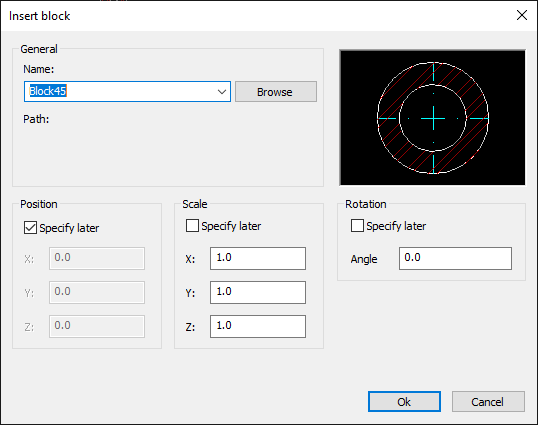
So fügen Sie einen Block ein:
- Click on Draw > Insert on the Ribbon.
or
- Enter INSERT in the command window.
- Select the name of an existing block in the dialog box.
or
- a) Click on Browse to insert a drawing file as a block.
b) Select a drawing file in the file manager. - Enter the coordinates of the insertion point in the Position area.
or
Select the Specify later option to specify the insertion point in the graphics area after closing the dialog. - In the Scale area, enter the scaling factor with which the block will be inserted
or
Select the Specify later option to specify the scaling factor in the graphics area after closing the dialog. - In the Rotation area, specify the rotation of the block.
or
Select the Specify later option to specify the angle in the graphics area after closing the dialog. - Click on Ok to insert the Block.
- a) Define the insertion point in the graphics area if you selected the Specify later option.
b) Define the scaling factor in the graphics area if you selected the Specify later option.
c) Define the rotation of the block in the graphics area if you selected the Specify later option.