Layer manager
With the help of the Layer manager you can define the layer structure and the properties of the individual layers.
How to access the Layer Manager:
- Click on Start > Layer manager
 on the Ribbon.
or
- Enter LAYER in the command window.
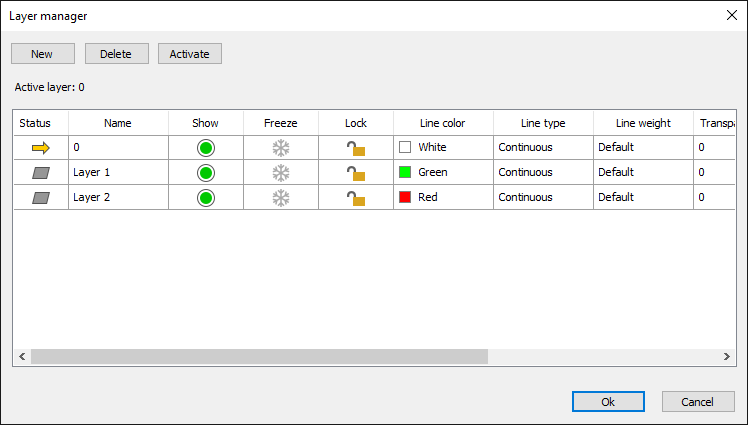
Manage layers
How to create a new layer:
- Click the New button.
- Rename the layer if necessary.
How to give a layer a new name:
- Double-click the name of the layer in the layer list.
- Enter a new name and confirm with Enter.
How to delete a layer:
- Select a layer in the layer list.
- Click the Delete button.
How to activate a layer:
- Select a layer in the layer list.
- Click the Activate button
Change layer behavior
How to show or hide a layer:
- Click the icon in the Show field in the layer list.
The green symbol means visible, the gray symbol
  means invisible.
How to Freeze or Thaw a Layer:
- Click the icon in the Freeze field in the layer list.
The blue ice crystal symbol means frozen, the gray ice crystal symbol
  means thawed.
How to lock or unlock a layer:
- Click the icon in the Lock field in the layer list.
A closed lock symbol means locked, an open lock symbol
  means unlocked.
How to determine whether a layer is printed:
- Click the icon in the Plot field in the layer list.
A printer symbol means printing, a crossed out printer symbol
  means not printing.
Set layer properties
This is how you set the line color of a layer:
- Click in the Line color field in the layer list.
- Select a line color from the list.
This is how you define the line style of a layer:
- Click in the Line type field in the layer list.
- Select a line type from the list.
This is how you define the line weight of a layer:
- Click in the Line weight field in the layer list.
- Select a line weight from the list.