Creating a Layout
A layout is a 2D workspace for creating drawing plans.
The area in a layout is paper space. Here you insert one or more scaled views of the model space (layout viewport) as well as other objects such as title block or parts lists.
You can create several layouts in order to show the various details of the model in a drawing plan.
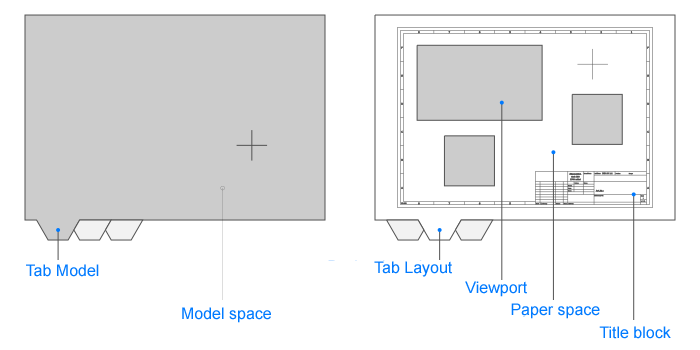
How to activate a layout:
- Left click the layout tab that you want to activate
or
- Enter LAYOUT in the command window.
- Enter Activate in the command window.
- Enter the name of the layout you want to activate in the command window.
How to add a new layout:
- Right click on a layout tab.
- Select the New option.
or
- Enter LAYOUT in the command window.
- Enter New in the command window.
- Enter the name of the layout in the command window.
How to rename a layout:
- Right click the layout tab that you want to rename.
- Select the Rename option.
- Enter a new name for the layout in the dialog box.
or
- Enter LAYOUT in the command window.
- Enter Rename in the command window.
- Enter the name of the layout that you want to rename in the command window.
- Enter the new name in the command window.
How to delete a layout:
- Right click the layout tab that you want to delete.
- Select the Delete option.
or
- Enter LAYOUT in the command window.
- Enter Delete in the command window.
- Enter the name of the layout that you want to delete in the command window.
How to copy a layout:
- Right click the layout tab that you want to copy.
- Select the Copy option.
or
- Enter LAYOUT in the command window.
- Enter Copy in the command window.
- Enter the name of the layout that you want to copy in the command window.
- Enter the new name in the command window.