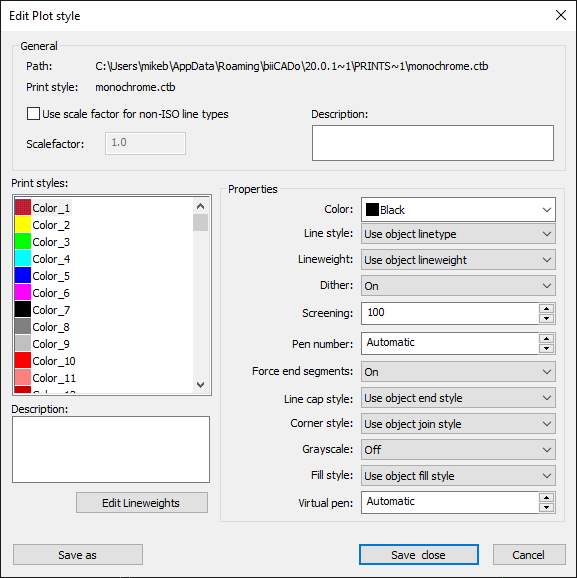
Editing a Plot style
You can edit a Plot Style with the PlotStyle command.
A color-dependent Plot Style Table contains 255 Print Styles (a print style for each color).
You can use a Print Style to control how objects should be printed with a specific color.
How to edit a plot-style table:
- Enter PLOTSTYLE in the command window.
- Select a CTB Plot Style file in File Explorer.
- Activate or deactivate the option Use scaling factor for non-ISO line types and define a scaling factor if necessary.
- Select a print style for which you want to change properties.
- Change any of the following properties:
Color: Defines the color with which an object is printed.
Line style: Defines the line type with which an object is printed.
Line weight: Defines the line width with which an object is printed.
Dither: Turns Dithering on or off.
Screening: Defines the color intensity. Enter a value between 0 and 100 (full color intensity).
Pen number: Specifies the pen with which the object is plotted (only for pen plotters).
Force end segments: Specifies whether the scaling of a line type is adjusted so that the line type pattern is displayed in full.
Line cap style: Defines the style for the line end.
Corner style: Defines the style for line connections.
Gray scale: Determines whether colors are output as shades of gray when printing.
Fill style: Defines the fill style.
Virtual pen.: Specifies the virtual pen for non-pen plotters, provided the plotter is set up to use virtual pens. - Click the Edit Line weights button to define different line weights.
- Click the Save & Close button to save the changes to the print style file.
or
- Click the Save As button to save the changes in a new print style file.