Line types
When you add a new drawing element, the active line type is assigned to this drawing element.
With the command Linetype you can load new line types, activate and delete existing text types.
Manage line types
This is how you open the Line type dialog:
- Click on Start > Line type
 on the Ribbon.
or
- Enter LINETYPE in the command window.
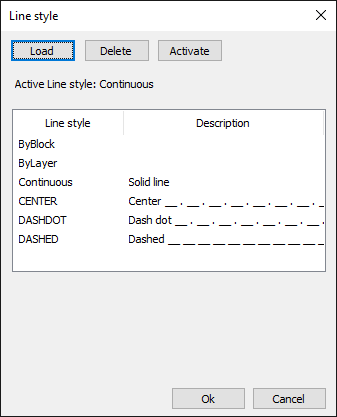
How to load a new line type:
- Click on Start > Line type on the Ribbon.
or
- Enter LINETYPE in the command window.
- Click the Load button.
- Click the Browse button to choose a different line style file.
- Select one or more line types in the list.
- Click the OK button.
The added line types are now in the line selection. - Click the OK button.
How to delete a line style:
- Click on Start > Line type on the Ribbon.
or
- Enter LINETYPE in the command window.
- Select the line type in the list that you want to delete.
- Click the Delete button.
- Click the OK button
How to set the active line style
- Click on Start > Line type on the Ribbon.
or
- Enter LINETYPE in the command window.
- Select the line type in the list that you want to activate.
- Click the Activate button.
- Click the OK button
This is how you define the scaling factor for a line type:
- Click on Start > Line type on the Ribbon.
or
- Enter LINETYPE in the command window.
- Select the line style in the list that you want to change.
- Enter a new value for the global scaling factor.
- Click the OK button.