Text styles
When you add new text, the active text style is assigned to this text.
With the command Style you can define new text styles, activate, change or delete existing text styles.
Manage text styles
This is how you open the Text style dialog:
- Click on Format > Text style
 on the Ribbon.
or
- Enter STYLE in the command window.
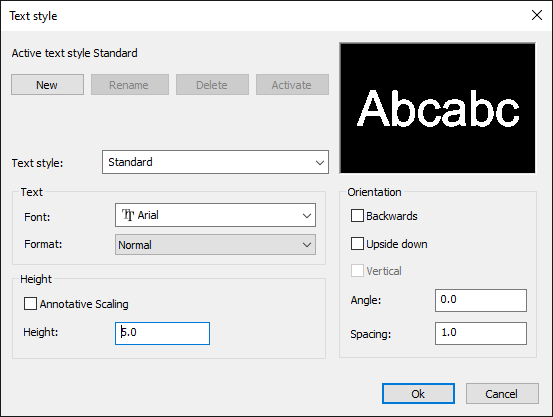
How to create a new text style:
- Click on Format > Text style on the Ribbon.
or
- Enter STYLE in the command window.
- Click the New button.
- Rename the text style if necessary.
- Click the OK button
How to rename a text style:
- Click on Format > Text style on the Ribbon.
or
- Enter STYLE in the command window.
- Select the text style you want to rename from the text style list.
- Click the Rename button.
- Enter a new name for the text style and close the dialog with "OK".
- Click the OK button.
How to delete a text style:
- Click on Format > Text style on the Ribbon.
or
- Enter STYLE in the command window.
- Select the text style you want to delete from the text style list.
- Click the Delete button.
- Click the OK button.
How to activate a text style:
- Click on Format > Text style on the Ribbon.
or
- Enter STYLE in the command window.
- Select the text style you want to activate from the text style list.
- Click the Activate button.
- Click the OK button.
How to change the properties of a text style:
- Click on Format > Text style on the Ribbon.
or
- Enter STYLE in the command window.
- Select the text style you want to change from the text style list.
- Make the desired changes to the height and orientation.
- Click the OK button.